
When I first became serious about researching the Jollett
family, I thought that one day I would create a book that would become the
go-to source on all things “Jollett.” However, my involvement in blogging,
genealogy groups on Facebook, and family research webinars has shown me the
errors of my early research ways, so I abandoned the idea of a definitive book
altogether.
Well, not really. Not totally. Conversations among
bloggers who have published books sent me in a different direction, one that
still satisfies my need to preserve all this research without the pressure of
starting over or retracing my steps to make better copies of documents. Some of
my colleagues have created annual “blog books” as a record of their posts. Others
have created books dedicated to a particular ancestor. The one thing they have in common, though, is
that they all self-published. I realized that surely I could do that, too.
Then the question was which company to use. Blog2Print
gets many votes from my colleagues, especially from those who compile all their
blogs into an annual book (or even quarterly books). The service is simple
enough: enter a blog address and
Slllluurrrp ~ instant book. Fast and easy.
 |
| From Blog2Print I do not like how this looks. Your decisions about whether to add page breaks and what size you want your photos to be will affect how the pages look. |
But I wanted to do more with my book than just what is in
my blog.
Blurb is another popular choice giving do-it-yourselfers several options, the two best known being BookSmart or BookWright. I started with BookWright but was quickly discouraged when my documents would not paste into the program. Had I read directions first, I would have noticed that documents needed to be in Rich Text or Plain Text. So I gritted my teeth and began saving my selected blog posts and family charts in RTF, all the while still searching for an easier option. On Blurb forums I saw so many positive comments for BookSmart being more user friendly, faster, and requiring less learning time that naturally, I switched to BookSmart.
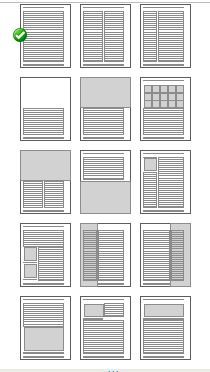 |
| A sample of page layouts from BookSmart. The boxes with lines are for text. The solid grey boxes are for photos. |
I downloaded BookSmart and then very easily entered my
title page, a dedication page, and a temporary table of contents. It was when I started my first chapter that I
ran into my first issue with BookSmart. What makes it “user friendly” is the
pre-set layouts. Initially the warnings about limited layout options did not
bother me until I realized that “pre-set” meant if I wanted to insert a photo
or two, they would go HERE and only HERE, and they would be THIS size and only
this size. Oh no – that was just too
confining for me.
Time to move on again.
Based on other reviews I also gave Lulu a shot. I created
an account and downloaded the templates. It’s almost TOO easy, IF I am following
the directions correctly. I simply typed over the Template title, Template
Table of Contents, Template Chapter, Template Index, etc.
 |
| Sample of Lulu template with its instructions |
I never saw any directions for inserting photos and images. Honestly, I cannot say I put enough time into Lulu to know whether there are more options than I found there. Bottom line – I just did not care for the templates.
So back to Blurb I went with a resolve to master
BookWright. Surely the learning curve
would be moderate for someone like me who has SOME publishing experience. I am
comfortable with basic rules about layouts, text flow, fonts, etc. I have
served as advisor to a school newspaper and yearbook; I’ve done countless
newsletters for clubs and organizations; I’ve designed flyers and Opening Day
booklets for Little League. Heck, I have a blog that requires some finesse.
 |
| Sample of editing in BookWright |
Looking back, I am not sure why I found BookWright so
difficult the first time because now it seems easier than BookSmart. Maybe it
is because second time around I was not fighting with the program.
WHAT I LIKE about Blurb BookWright
- I’m in control. While there are various layout templates to choose from, I can manipulate them. There are tools for drawing a text box and inserting a photo or other image. I can view rulers to help line up multiple images, center a caption beneath a photo, etc.
- It’s easy to change font style and size.
- I can adjust photos right on the screen. Images and photos and text can be layered for a sophisticated and eye-catching presentation.
- There is a tool for wrapping text around an image.
- Warning symbols alerted me to an incompatible font, low- resolution images, and text overflow.
- Video tutorials are brief and clear.
- It is easy to move back and forth between the editing screen and Preview.
WHAT I DO NOT LIKE about Blurb BookWright
- The bar holding photos and images does not allow for any to be removed (or if they can, I couldn’t find how). This means that the photo bar became very long and difficult to navigate, especially when I had to upload additional copies of the same image that had been flagged as “low-resolution.” I like Shutterfly’s ability to delete unwanted photos and hide those that have been used.
- I’m not sure “Save” always worked. I made corrections one day only to find the same mistakes the next day. In a Blurb forum, one user said he thinks once the book gets to a certain size, like 100 pages or more, it takes longer for changes to be saved. He suggested Blurb add an hour glass to show when the SAVE is complete. I agree.
- At present there is no way to add a border around a box or an image. Some graphic flourishes would make a nice addition to the BookWright arsenal to give self-published books a more professional look.
- I saw no way to add bullets. Did I miss something?
- Some directions in the HELP tab are not clear. For example, “How to Add, Edit, Delete Page Numbers” is presented as ONE topic, but it doesn’t clearly address deleting page numbers. To “Delete” is almost the same as “Edit,” but Blurb does not say that. I had to click numerous times to get the Delete to delete.
- Contacting the HELP desk is not easy. Once you start typing your subject line of the "Contact Us" email, you get referred to a number of possible topics already covered to be sure you have already sought out the answer. I get it. This process certainly cuts down on Blurb employees having to answer something that has already been answered through FAQ and HELP. So ultimately, this is a good policy, but it certainly is frustrating in the moment.
My book printed quickly. Shipping is another story. I am still waiting for it to arrive.

© 2015, Wendy Mathias.
All rights reserved.
